Safety
Staying safe and private on WeLoop
How to block and report on WeLoop, mute chats, run private groups, manage location, sign-ins and notifications, and delete your account.
 weloop
Get the app
Safety
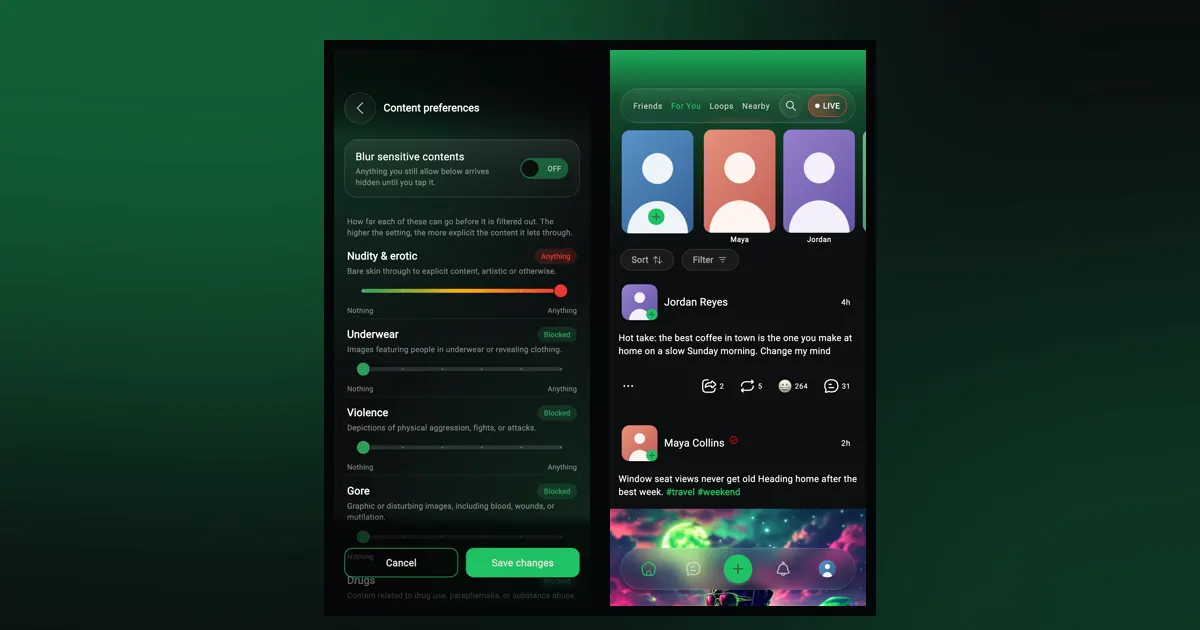
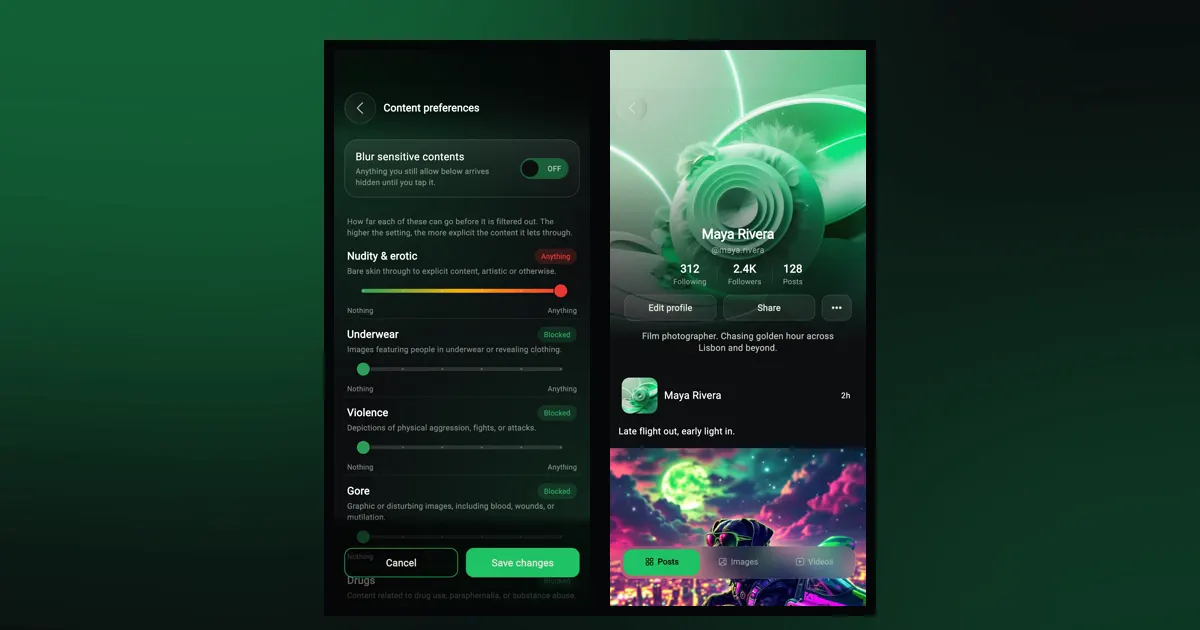
WeLoop's content preferences let you decide how far each of nine kinds of sensitive content can go before it's filtered out of what you see. Each category gets its own slider with six levels, from Blocked to Anything, and you can also blur anything you still allow until you choose to tap it.
This guide covers where the setting lives, what each category means, what it's set to when you start, and a few setups for different people.
If you tap "Cancel" after moving something, WeLoop asks "Discard changes?" so you don't lose a setting by accident. You can also get here from a hidden post: tap "visit your settings page." under the notice.
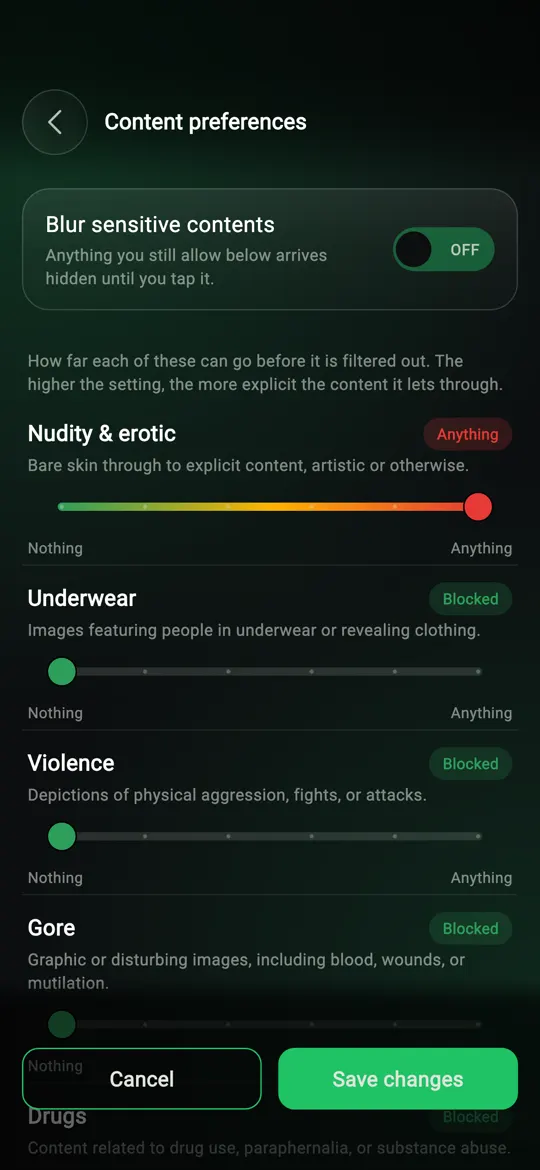
Each post carries a rating for each category. A post is shown to you when its rating sits at or under the level you set for that category. In the app's words, the sliders set "How far each of these can go before it is filtered out."
The six levels are shown as words, not numbers:
| Level | What it means for you |
|---|---|
| Blocked | Nothing rated in this category reaches you. |
| Very mild | Only the lightest content in this category. |
| Mild | Light content gets through. |
| Moderate | A middle setting. |
| Strong | Most content in this category gets through. |
| Anything | No filtering for this category. |
The scale is about how explicit content can be, not how often it shows up. Setting Violence to Mild doesn't mean you'll see violence less often; it means anything stronger than mild is filtered out.
These are the app's own descriptions:
When you start, all nine categories are set to Blocked. Nothing sensitive reaches your feed until you decide it should.
If you'd like to see more in a category, such as Alcohol or Gambling, move its slider up to the level you're comfortable with. Nothing changes until you tap "Save changes".
At the top of the screen is a switch called "Blur sensitive contents". The app describes it this way: "Anything you still allow below arrives hidden until you tap it."
With it on, a post that passes your sliders but carries a sensitive rating shows up covered, with the note "Some content is hidden based on your sensitivity settings." Tap "View anyway" to see it. It's a middle ground: you don't miss the post, but you decide when to look.
Blocked categories stay blocked either way. The blur only applies to what you've allowed.
"Related content preferences" is a separate screen, just below "Content preferences" in Settings. It says: "Here you can choose the type of content you mostly want to see on your for you feed."
Tap the content types you're interested in, then tap "Save changes". Your For You feed refreshes with your picks. This doesn't filter anything out; it tells For You what to lean toward. For more on how For You and the other feeds work, see WeLoop's four feeds explained.
Content preferences belong to the account they're set on, so set them on the account your teen uses. Pair this with the blocking and reporting tools in our safety and privacy guide.
Pick the categories you're fine with and move them to Mild or Moderate, for example Alcohol and Gambling, while keeping Gore and Hate at Blocked. Turn on the blur if you'd like a moment to decide before a post shows.
Move every slider to Anything and turn "Blur sensitive contents" off. You'll see posts as they are, with no filtering and no tap to reveal.
Yes, as often as you like. Open "Content preferences" again, move the sliders, and save. Your settings are saved to your account, not just to your phone.
Content preferences are one of the things that make WeLoop different from apps with a single on/off switch for sensitive content. You can read more about that in what makes WeLoop different.
Open your profile menu, tap "Settings", then under Content & Display tap "Content preferences".
All nine categories start at Blocked. You can open up any of them, one at a time.
Yes. Turn on "Blur sensitive contents". Posts you still allow arrive hidden, and you tap "View anyway" to see one.
They apply once you tap "Save changes". If you leave without saving, WeLoop asks whether to discard them.
Safety
How to block and report on WeLoop, mute chats, run private groups, manage location, sign-ins and notifications, and delete your account.
Guide
WeLoop has four feeds: Friends, For You, Loops and Nearby. Here's what each one shows, how to sort and filter them, and where stories and lives fit in.
About
WeLoop is a free social app with four feeds, short videos, stories, chat, groups, lives and calls, plus controls over what you see. Here's a tour.
Free on iPhone and Android. Set it up your way in a minute.