Safety
WeLoop content preferences: how to choose what you see
Set nine content categories from Blocked to Anything, blur sensitive posts until you tap, and tune For You. Here's how WeLoop content preferences work.
 weloop
Get the app
Safety
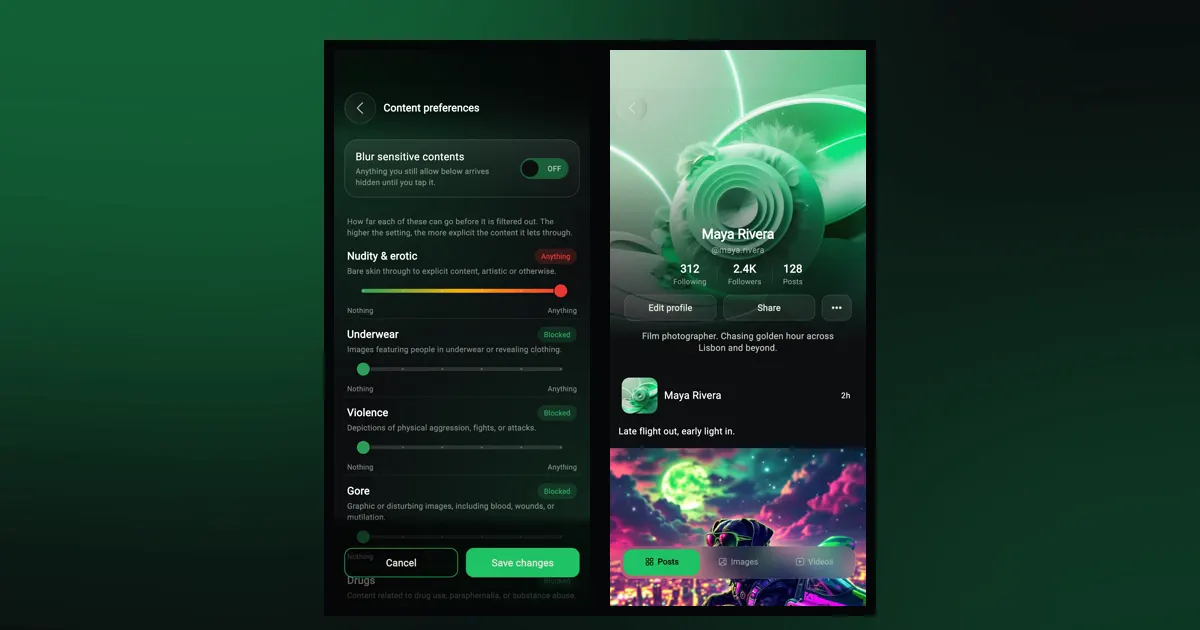
WeLoop gives you a few direct tools for staying safe: you can block people from posts, chats and profiles, report posts, mute chats, keep groups private, and see every device signed in to your account. Most of them live in one place, the "Settings and Privacy" screen, which you reach by tapping your profile picture in the bottom bar and then "Settings".
Here's what each tool does and where to find it.
Blocking works from wherever you run into the person:
When you block someone, their posts are taken out of your feed.
Tap the three dots under the post and choose "Report Post". WeLoop shows a confirmation when your report has gone through. If you don't want to see that person again either, pick "Block user and Report post" to do both at once.
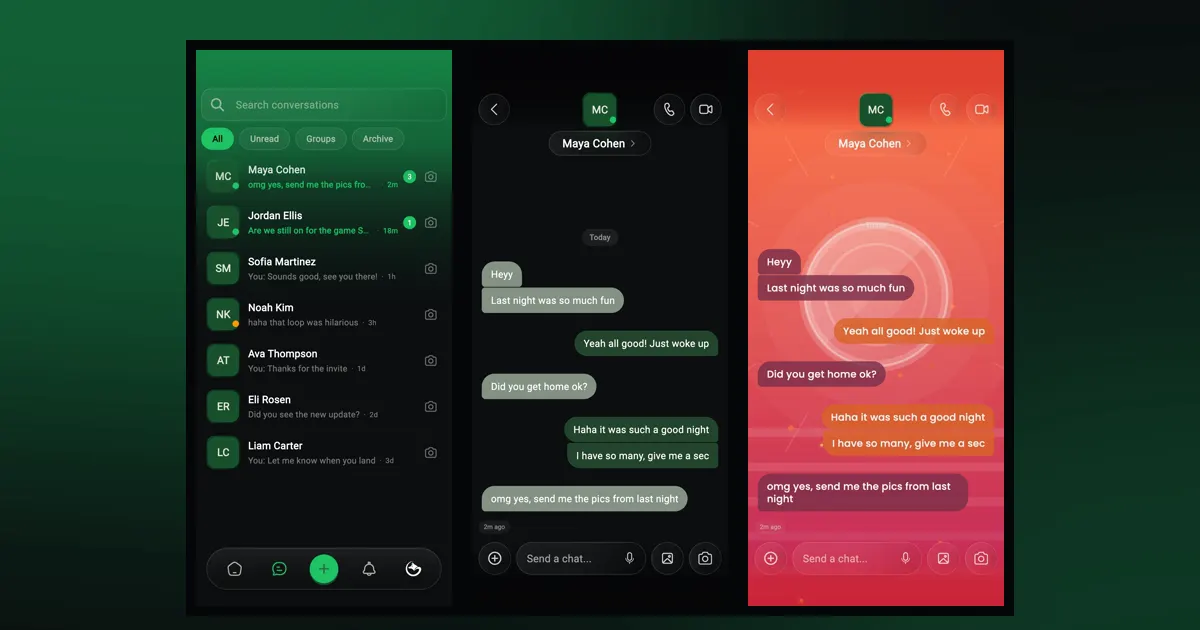
Open a chat, go to its details, and turn on "Mute notifications". The chat stays in your inbox; it just stops buzzing your phone. For a group, do the same in the group chat's details.
If a chat is cluttering your inbox, you can also archive it or use "Delete chat". You can read more about chats and groups in our chat and groups guide.
When you create a group, you choose "Public Group" or "Private Group". In a private group, people who haven't joined see "This group is private" and need to join before they can see or take part in the discussion.
You also choose how people get in:
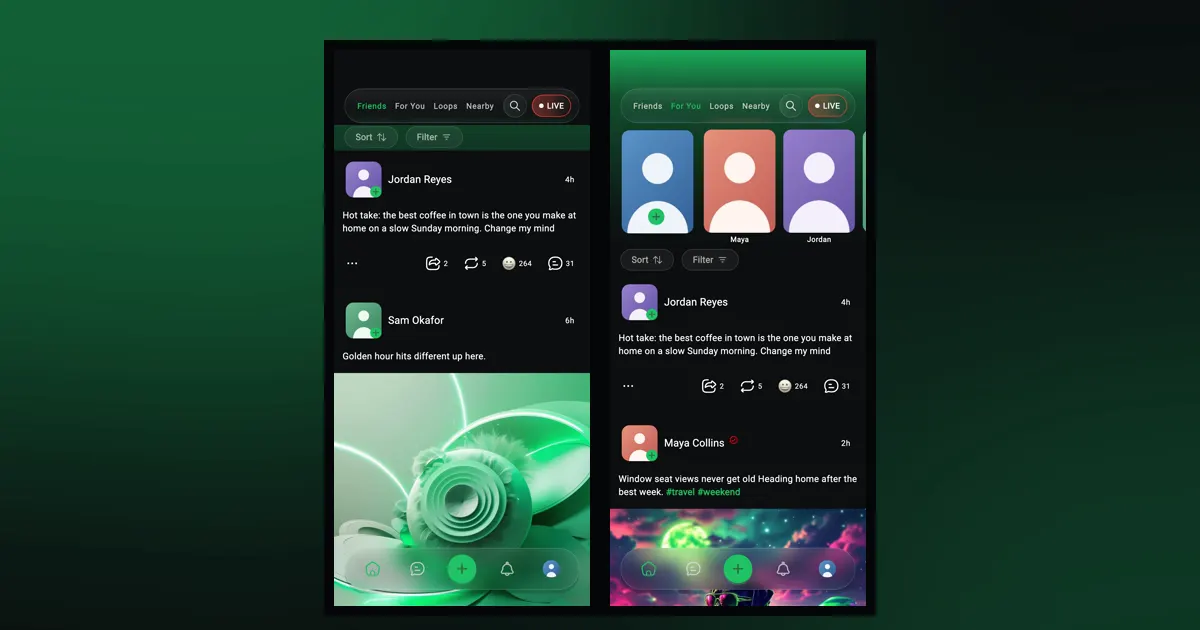
The Nearby feed uses your phone's location to show posts from people around you. When you post a story, "Nearby" is also one of the places you can share it, alongside "To Public", "My Story" and "My groups". Pick the audience that fits each story.
Location access is controlled by your phone. If you'd rather not share it, leave location off for WeLoop in your phone's settings; Nearby needs it to work, but the other feeds don't.
Open your story to see the "Story Viewers" list. You can delete your own story at any time.
"Registered devices" lists every phone signed in to your account, with the one you're holding marked "This device".
It's worth checking after you sell or lose a phone.
Open "Settings" and, under Content & Display, tap "Notifications". You can turn push notifications on or off as a whole, or switch them off by type: Chat, Comment, Follow, Generic, Group Invite, Post, Posts Reactions, Reply and Typing. Tap "Save changes" when you're done.
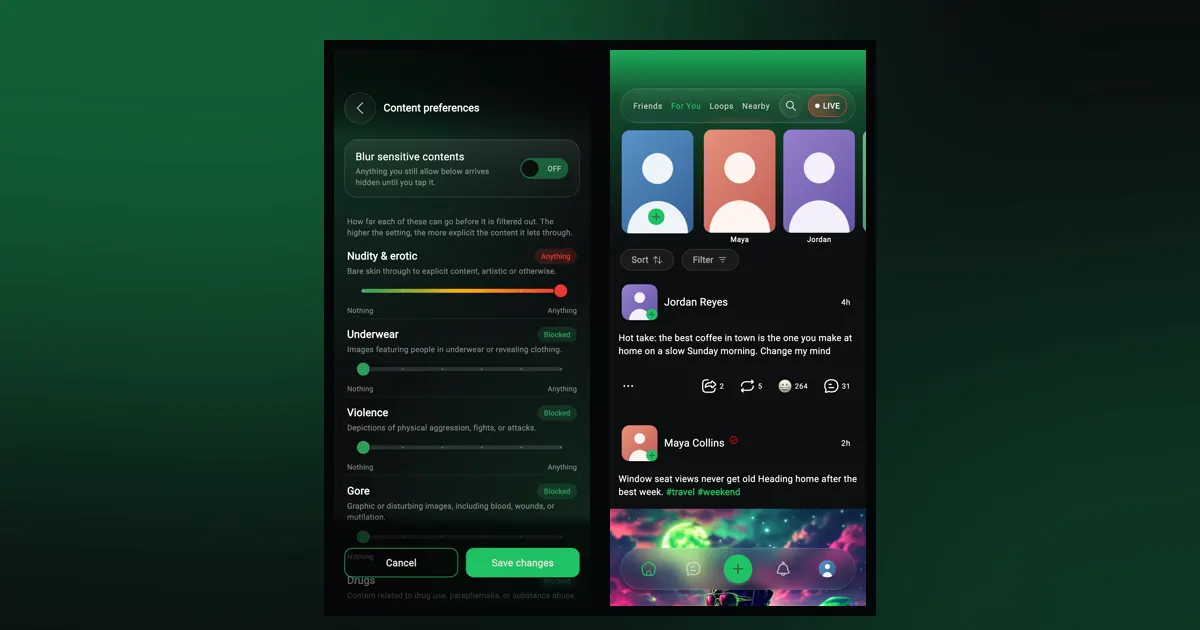
"Content preferences", also under Content & Display, lets you set nine categories, such as Violence, Gore and Hate, from Blocked to Anything, and blur anything sensitive until you tap it. Every category starts at Blocked, so a new account, a teen's included, sees nothing sensitive until someone changes it.
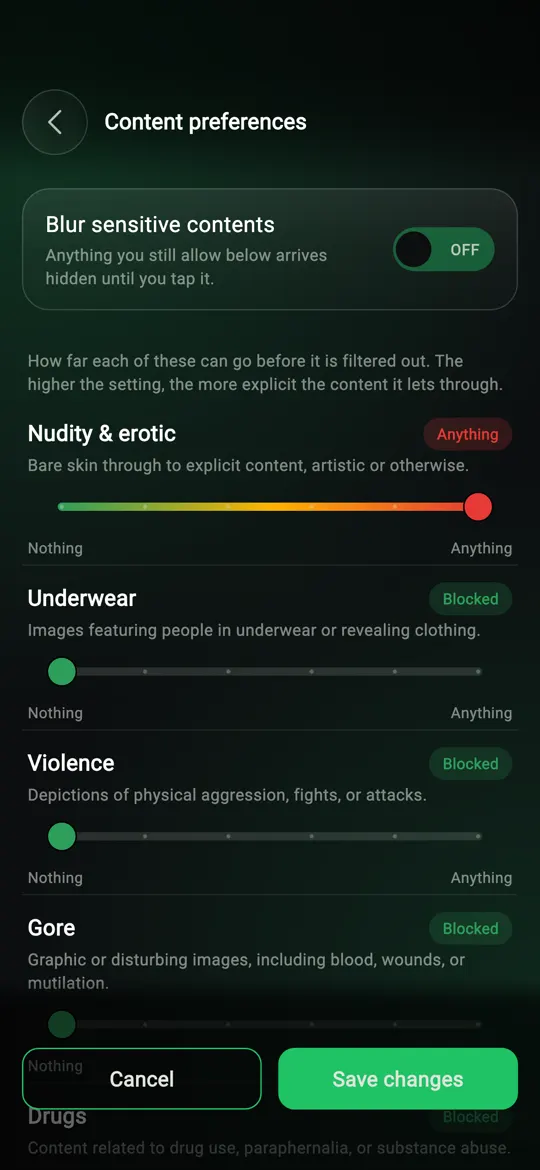
Our content preferences guide walks through every category and suggests setups for different people.
To sign out, open "Settings" and tap "Sign Out" under Account.
To delete your account for good:
Deleting your account can't be undone, and WeLoop signs you out right away. If you only want a break, signing out or muting notifications might be enough.
Yes. You can browse some of WeLoop before signing up, without sharing anything about yourself. See what you can do on WeLoop without an account.
Tap the three dots on one of their posts and choose "Block user", or open your chat with them, tap the chat details and choose "Block user".
Go to Settings, then under Interactions tap "Blocked accounts" and tap "Unblock" next to the person.
Go to Settings, then under Account tap "Terminate Account" and confirm with the "DELETE ACCOUNT" button. This can't be undone.
Yes. Settings, then "Registered devices" lists them. Tap "Revoke" to remove one you don't recognize.
Safety
Set nine content categories from Blocked to Anything, blur sensitive posts until you tap, and tune For You. Here's how WeLoop content preferences work.
Guide
How WeLoop chat works: pinning and archiving, replies, reactions and voice notes, chat themes both people see, and public or private groups.
Guide
WeLoop opens without signing up: browse For You, watch Loops, search and view profiles. Here's what works as a guest and what an account adds.
Free on iPhone and Android. Set it up your way in a minute.