How-to
How to make voice and video calls on WeLoop
Call anyone you chat with on WeLoop, one-on-one or as a group, by voice or video. Calls are in beta. Here's how to start, switch and rejoin them.
 weloop
Get the app
Guide
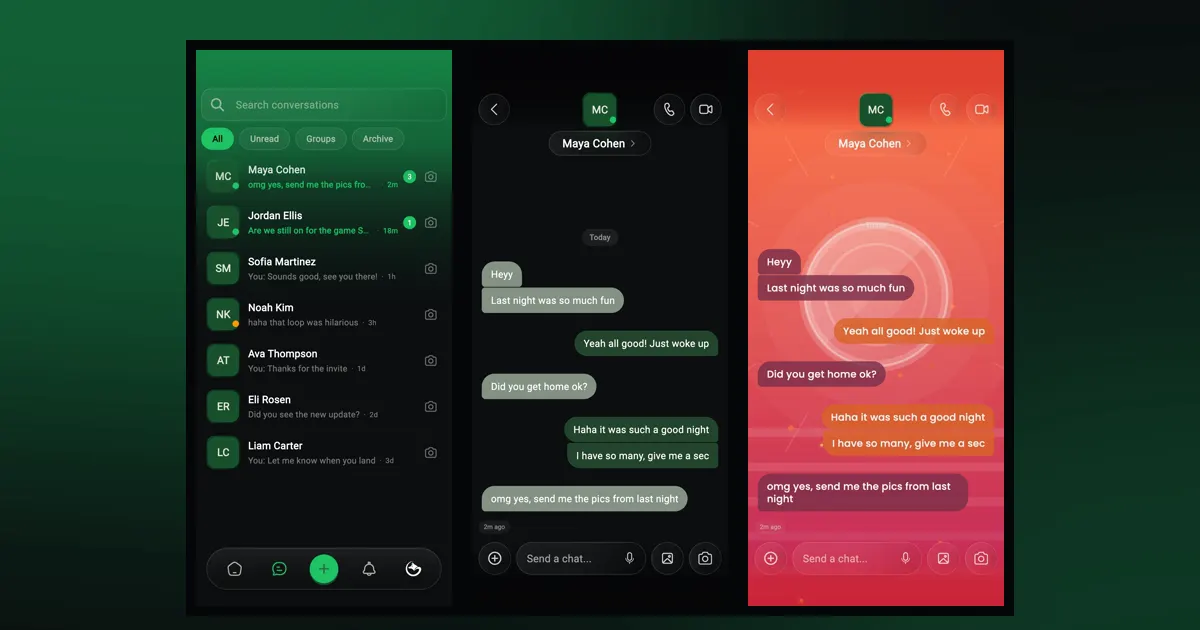
WeLoop chat covers one-on-one messages, group chats and voice or video calls, and each chat can have its own look. Groups are communities with their own posts, chat, rules and admins, and they can be public or private.
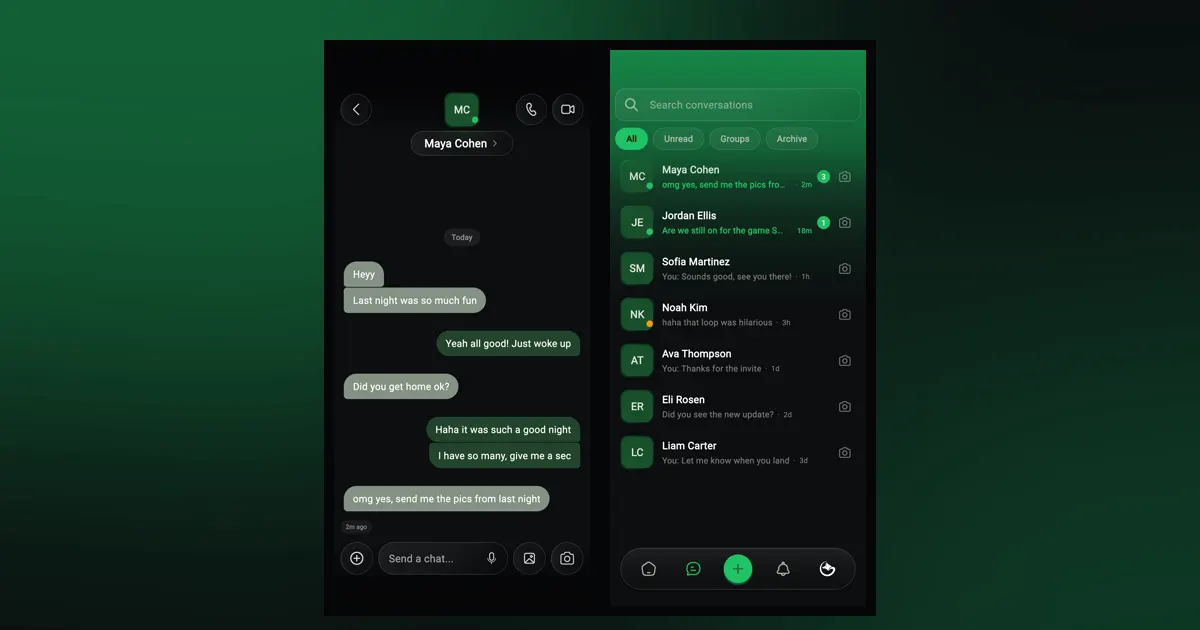
Tap Chat in the bottom bar to open your inbox. Here's everything you can do from there.
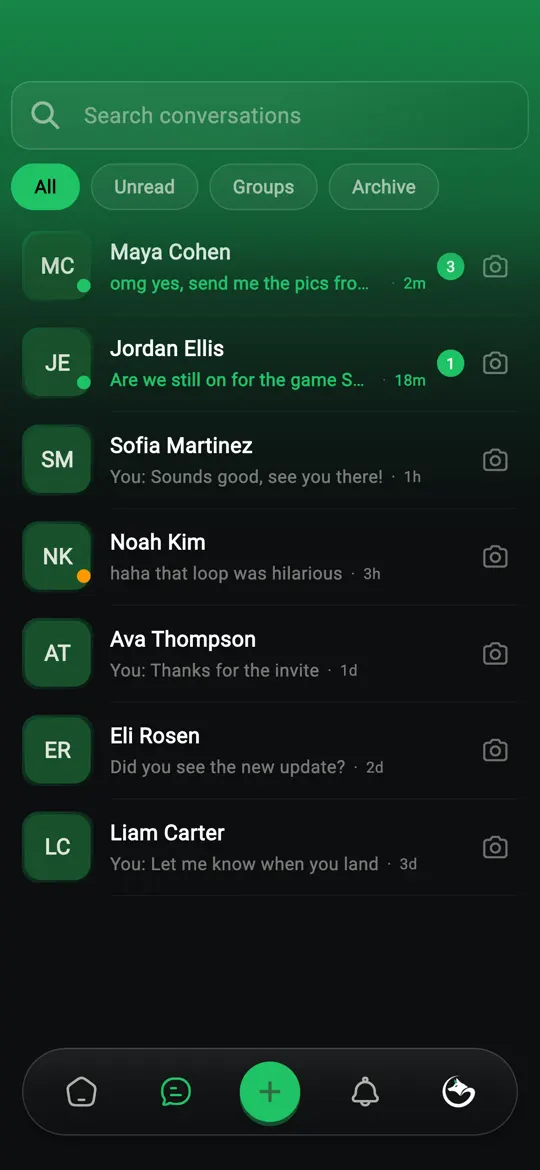
Four filters run along the top: All, Unread, Groups and Archive. Use "Search conversations" to find a chat by name.
To tidy up:
When you and someone follow each other, you become friends, and WeLoop starts a chat for you automatically. It opens with "Say hi to [name] with a wave 👋", so you can break the ice with one tap.
Long-press any message to get its options:
There are 8 quick reactions: 🥰 🔥 😂 🙏 😢 🤔 🥹 🤪.
The attach button offers "Photo or video", "Camera", "Document" and "Sticker", with a library of 31 stickers. You can also send voice notes. Links show a preview, and you'll see when the other person is typing.
Tap the name at the top of a chat to open its details:
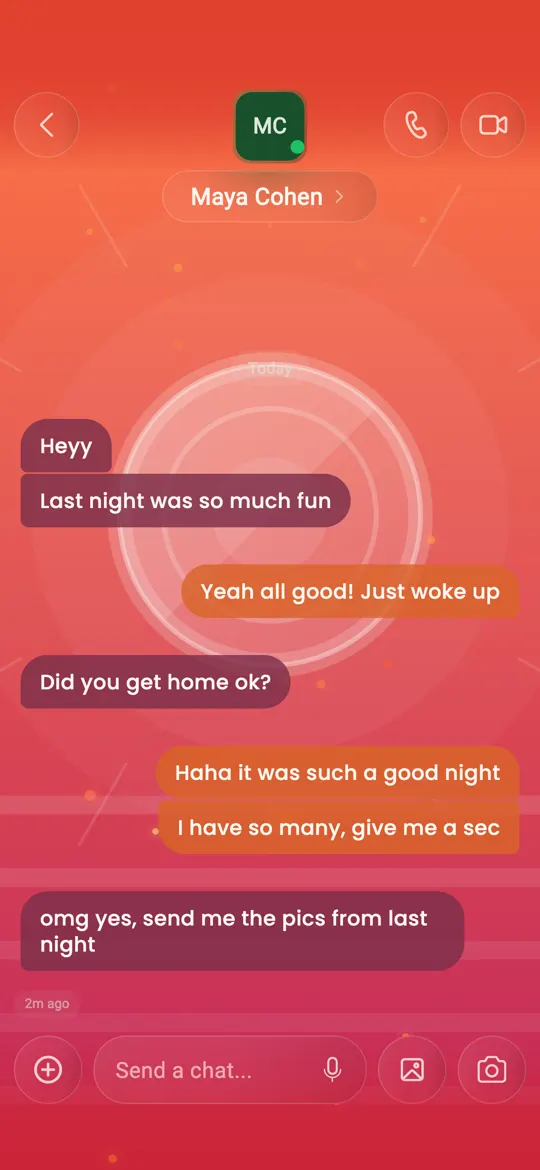
Open chat details and tap "Chat appearance". There are four tabs: Theme, Chat, Bubbles and Text.
Themes: there are 11 ready-made ones: Love, Midnight, Sunset, Ocean, Forest, Tropical, Bloom, Neon, City, Bubblegum and Mono. Pick one for a full look in a tap.
Background: choose None, a Gradient (12 presets, or your own start and end colors), a Color, or a Photo of your own. On top, you can add one of 9 artworks (Heart, Moon, Sun, Mountains, Waves, Palms, Blossom, City, Rings) and one of 13 animations, from Hearts and Snow to Fireflies and Confetti.
Bubbles: 12 shapes, from Rounded and Pill to Cloud and Ribbon, each Solid or Outlined. Set the opacity, and pick separate colors for your bubbles and theirs.
Text: 15 font options (Default plus 14 fonts such as Inter, Poppins, Quicksand and Playfair Display), the text size, the weight from Light to Bold, and the text color.
Found a combination you love? Tap "Save this look" and give it a name. You can keep up to 10 saved looks and reuse them in other chats.
Partly. The background and pattern are shared, so both of you see the same chat. Fonts and bubble colors stay on your device, so you can read the chat your way without changing it for them.
That's different from your app-wide Look, which only you see. The themes guide covers Looks.
Open Groups from the menu on your profile. There are three tabs:
Each group has its own posts, a group chat, and a menu with About, Settings, Invite, Requests and Leave.
Tap Join. In a group that approves people by hand, the button changes to "Requested" until an admin lets you in. A private group shows "This group is private" until you've joined.
A public group is good for a hobby, a town or a fan club anyone can find. A private group suits a family, a team or a class.
Groups also tie into the rest of WeLoop. You can share a story to "My groups", share posts into a group, and creators can use a group to keep regulars talking between lives. More on that in what makes WeLoop different.
Up to 6. Swipe left on a chat and tap "Pin", or long-press it and choose "Pin to top".
The background and pattern are shared, so both of you see them. Fonts and bubble colors stay on your device.
Yes. Long-press your message and tap Edit.
Yes. When you create a group, choose "Private Group". People have to join before they can see or take part in discussions.
How-to
Call anyone you chat with on WeLoop, one-on-one or as a group, by voice or video. Calls are in beta. Here's how to start, switch and rejoin them.
Guide
Pick one of 14 Looks, choose a palette and one of 30 fonts, or fine-tune colors and feed post styles in Advanced. Here's how WeLoop themes work.
Safety
How to block and report on WeLoop, mute chats, run private groups, manage location, sign-ins and notifications, and delete your account.
Free on iPhone and Android. Set it up your way in a minute.