Guide
WeLoop chat and groups: messages, chat themes and communities
How WeLoop chat works: pinning and archiving, replies, reactions and voice notes, chat themes both people see, and public or private groups.
 weloop
Get the app
How-to
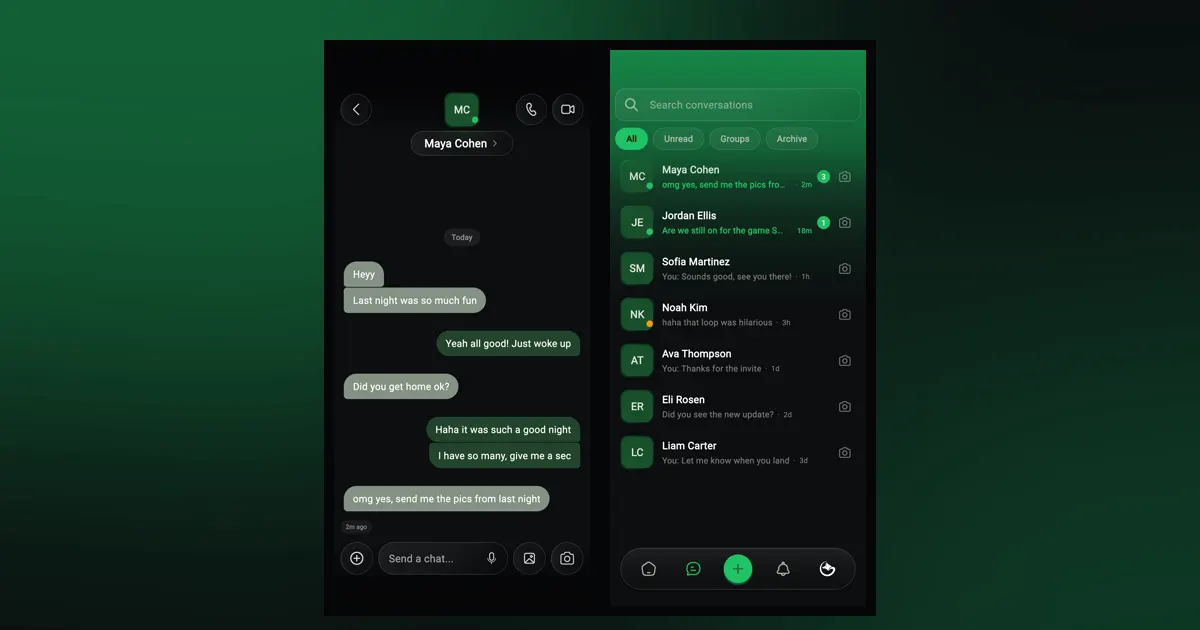
Yes, WeLoop has voice and video calls. Open any chat and tap the call buttons at the top to call that person, or the whole group, by voice or video.
Calls are in beta. The app says so up front: "Voice and video calls are new to WeLoop, and still in beta." They work well on a good connection, but they "can drop or lag now and then, mostly on a weak connection." Here's how to use them.
You can also call someone from their profile. The same two buttons sit at the top right, opposite the back button, and they start the call in the chat you share.
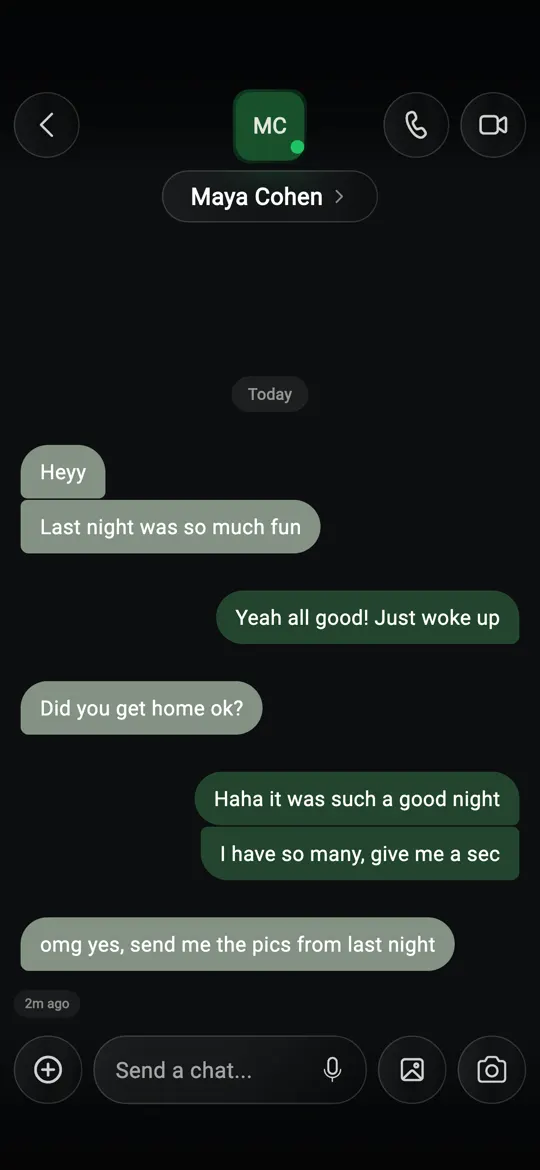
Yes. Calls work "one-on-one or the whole group". Start a call from a group chat and everyone in it can join. Each person appears in their own tile.
The incoming call covers whatever you're looking at in WeLoop, so you don't need to be in the chat to see it. Tap "Answer" or "Decline". When the app isn't open, the call rings on your phone like other calls do.
Each call also leaves a card in the chat. A call you didn't pick up shows as a missed call with "Tap to call back"; others show "Call ended", "Declined" or "No answer".
| Button | What it does |
|---|---|
| Mute | Turns your microphone off and on. |
| Speaker | On a voice call, switches between the earpiece and the loudspeaker. |
| Video | On a voice call, asks the other side to switch to video. |
| Camera | On a video call, turns your camera off and on. |
| Flip | Switches between your front and back cameras. |
| Red button | Hangs up. |
You can go from voice to video and back without starting a new call: "camera on or off mid-call". If someone has muted their microphone, you'll see "Muted" on their tile, so you know the silence isn't a bad line.
When your phone is connected to something, the Speaker button changes to show where the sound is going: "Bluetooth", "Car" or "Headphones". Tap it to switch to the loudspeaker, and tap again to go back.
On a video call without headphones, the sound stays on the loudspeaker, since you're holding the phone at arm's length anyway.
Yes. On a video call, the face mask button sits next to your camera's flip button. It opens the same face masks you can use in the camera and in lives, and only changes your own picture.
Yes. You can "shrink the call to a small window and carry on" with the rest of WeLoop:
So you can scroll your feed, answer another chat or look something up and keep talking.
Open the chat again. "An ongoing call shows in its chat to rejoin": a banner says "Tap to join the call in progress". Tap it and you're back in.
If you try to start a call while another app or a WeLoop live is already using your camera or microphone, WeLoop tells you "You are already using the camera or microphone". Close that first, then call.
Open the chat, tap the name at the top to open chat details, and choose "Call History". It lists the calls in that conversation. If there haven't been any, it says "No calls in this conversation yet". The chat and groups guide covers the rest of the chat details screen.
After a call that connected, WeLoop asks "How was your call?" with five stars, from Terrible to Great. You can pick what went wrong or what could've been better, such as a long delay or echo, and add a note under "Anything else? (optional)". Tap "Send feedback", or "Skip" if you'd rather not.
Because calls are in beta, these ratings go straight into making them better: "Your feedback helps us make calls better."
Call notifications are switched on for you, so calls can reach you even when WeLoop is closed. Your other notification settings are in "Settings and Privacy", under Notifications. To quiet a busy chat, use "Mute notifications" in its chat details, and if you don't want to hear from someone at all, block them. See the safety and privacy guide for how blocking works.
Yes. You can make voice and video calls from any chat, one-on-one or with a whole group. Calls are still in beta.
Yes. Open the group chat and tap the call buttons at the top. Everyone in the chat can join.
Open the chat again. A call that's still going shows a banner there, "Tap to join the call in progress".
Guide
How WeLoop chat works: pinning and archiving, replies, reactions and voice notes, chat themes both people see, and public or private groups.
Safety
How to block and report on WeLoop, mute chats, run private groups, manage location, sign-ins and notifications, and delete your account.
About
WeLoop is a free social app with four feeds, short videos, stories, chat, groups, lives and calls, plus controls over what you see. Here's a tour.
Free on iPhone and Android. Set it up your way in a minute.