Guide
WeLoop coins, rewards and withdrawals, explained
Buy coins to send gifts in lives, collect rewards in USD when you're gifted, and withdraw through Stripe. Here's how the WeLoop wallet works.
 weloop
Get the app
How-to
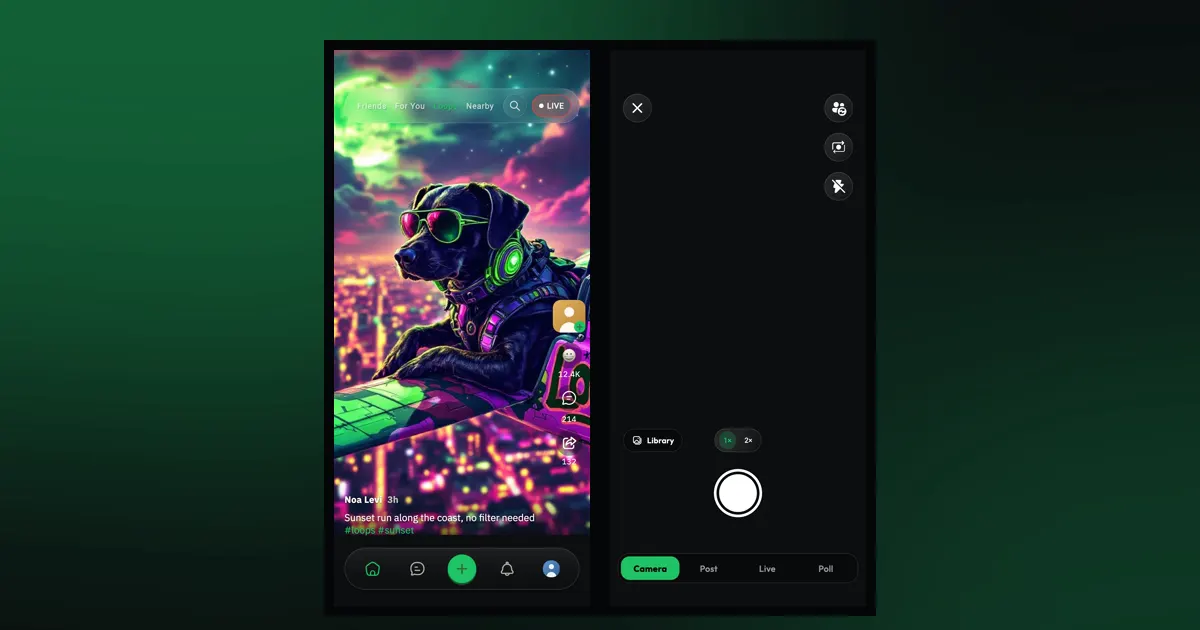
To go live on WeLoop, tap the + button, switch to "Live", add a topic and tap "Go Live". While you're live, viewers can comment, like toward a goal you set, join you as guests and send gifts, and creators keep up to 95% of what they're gifted.
This guide walks through starting a live, running it, and what you get afterward. There's also a short section on growing an audience that shows up when you go live.
While you're live, the controls let you switch cameras, mute your mic, open "Guests", share the live and open Settings. You can pause the stream and resume it, and when you're done, end it from the "End Live?" prompt.
Open Settings during the live to get "Live Settings":
Viewers who want to join tap "Request". Their requests collect in "Guest Requests", where you tap Accept for the people you want on screen. Once a guest is on, you can pin them to the main screen so they're the one everyone is watching.
It's a simple way to run a Q&A, interview another creator or bring a friend on for a duet.
Each person on your live has their own controls. You can:
Turning off comments in Live Settings is the quickest fix if the chat gets out of hand.
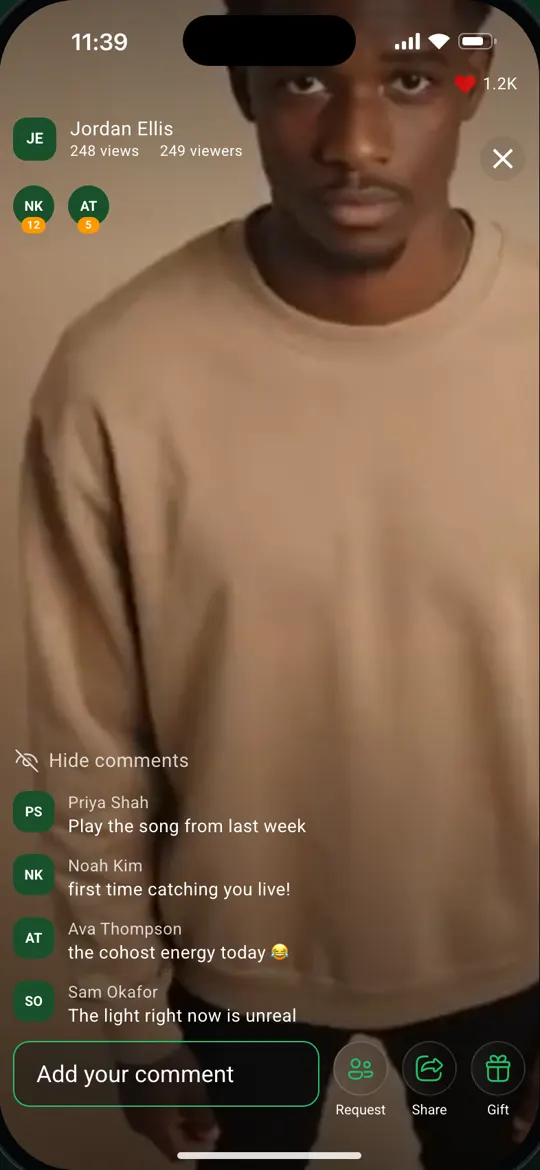
People find lives through the "LIVE" button at the top of the feed, which opens the list of current lives, or when someone shares one with them. A live shared in chat shows up as a card that says "Tap to watch".
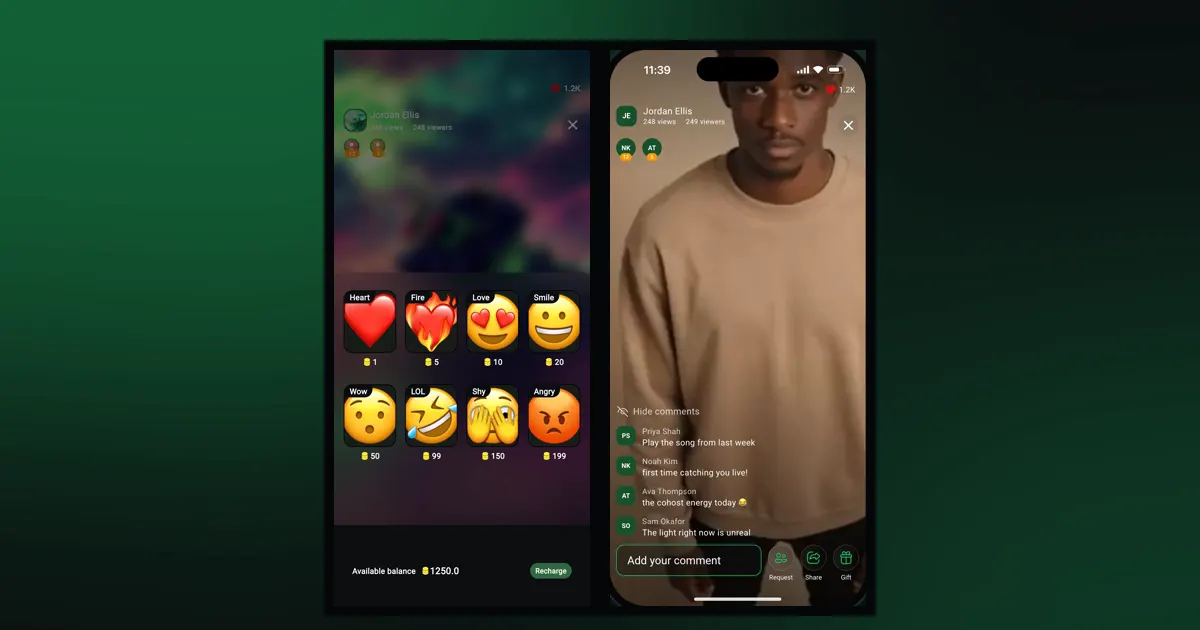
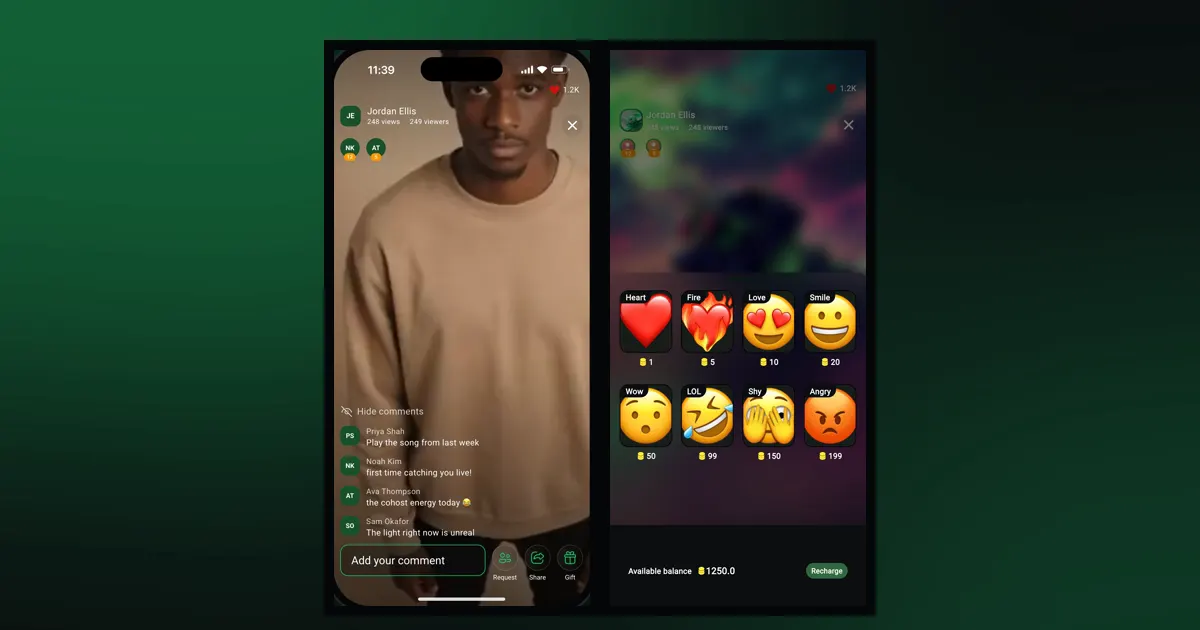
Once they're in, viewers can:
The top three gifters are shown on screen, and gifts play an animation when they arrive. Viewers can also keep watching in a small picture-in-picture window while they use other apps, on Android 8 and later or iOS 15 and later.
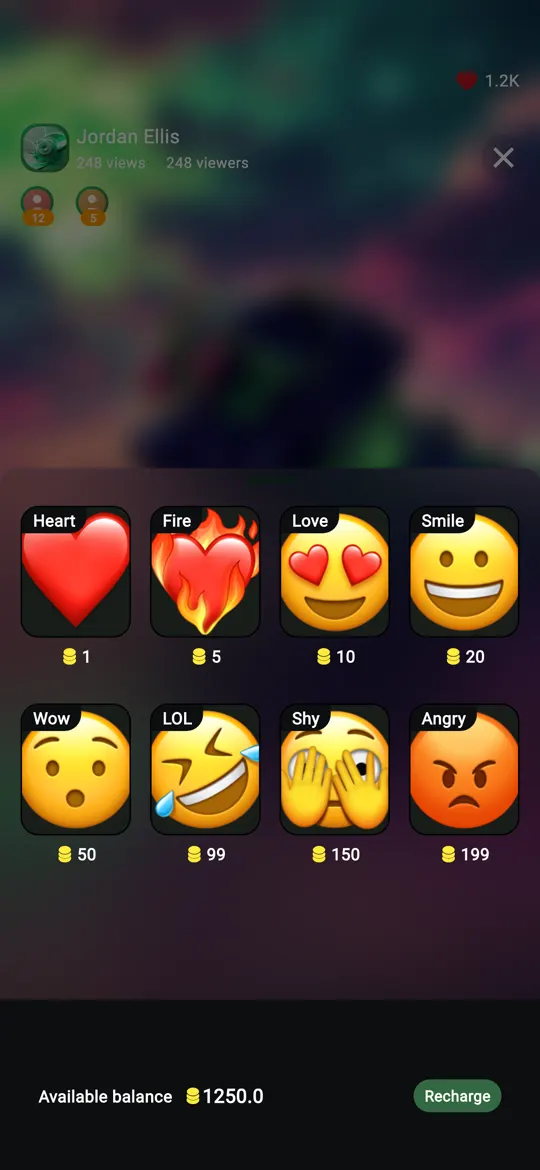
Viewers buy coins and spend them on gifts from the gift sheet. The sheet shows their "Available balance", and "Recharge" takes them to buy more if they run low.
Some gifts are AR gifts: they carry a face mask, and when one arrives, you wear it on camera for a few seconds. It's a fun moment for everyone watching, and it makes gifting part of the show.
Creators keep up to 95% of what they're gifted. Gift money lands in your wallet under "From rewards", in US dollars. From there you can move it into coins or withdraw it. Coins, rewards and cashing out explains the wallet step by step.
When you end the live, WeLoop shows your "Live stats":
| Stat | What it tells you |
|---|---|
| Views | How many people watched |
| Likes | Likes during the live |
| Comments | How many comments came in |
| Gifts | How many gifts you received |
| Gifters | How many people sent them |
| Goal Progress | How close you got to your likes goal |
| Live Earnings | What the gifts earned you, in USD |
Check these after every live. Over a few weeks they show which topics and times bring people in.
Gifts come from people who already know you. Lives work best when you build that audience the rest of the week:
Want the bigger picture of what you can do on WeLoop? See the livestreaming page and what makes WeLoop different.
Creators keep up to 95% of what they're gifted. Gifts land in your wallet under "From rewards", in US dollars.
Yes, if "Allow guests" is on in Live Settings. Viewers tap "Request", and you accept them from "Guest Requests".
Yes. Open Live Settings and switch off "Allow comments", or use "Hide comments" to hide them from your side.
Guide
Buy coins to send gifts in lives, collect rewards in USD when you're gifted, and withdraw through Stripe. Here's how the WeLoop wallet works.
How-to
Record up to 2 minutes or pick from your library, edit with filters, FX and the Expert editor, then post. Plus how to swipe, speed up and rewatch Loops.
Guide
How WeLoop chat works: pinning and archiving, replies, reactions and voice notes, chat themes both people see, and public or private groups.
Free on iPhone and Android. Set it up your way in a minute.