Guide
WeLoop's four feeds explained: Friends, For You, Loops and Nearby
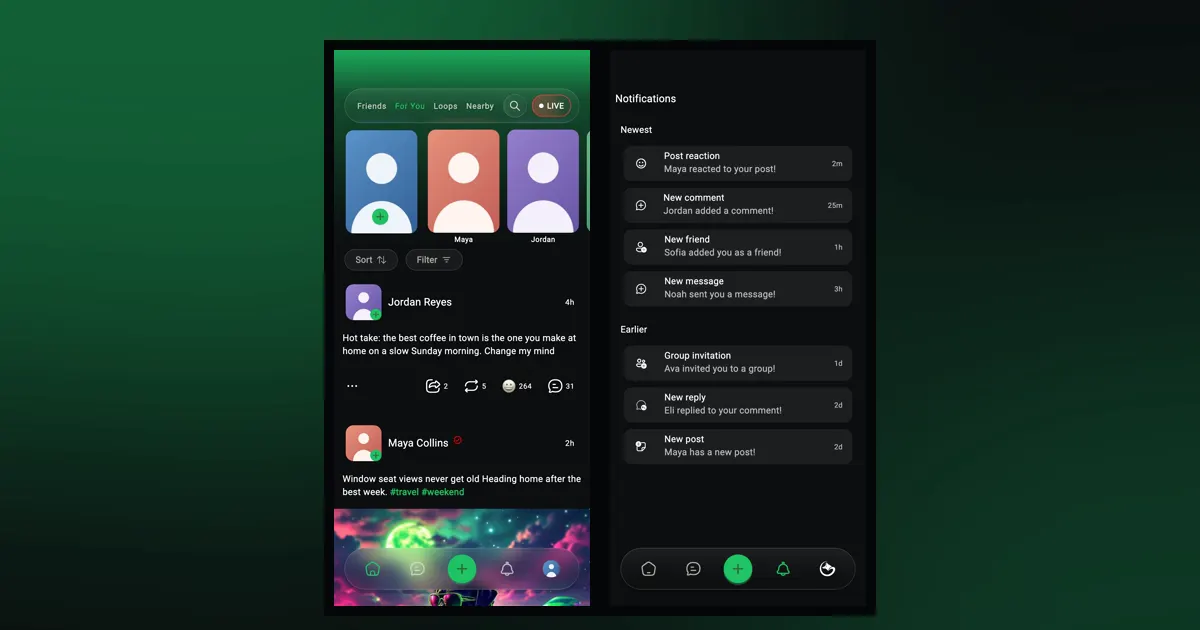
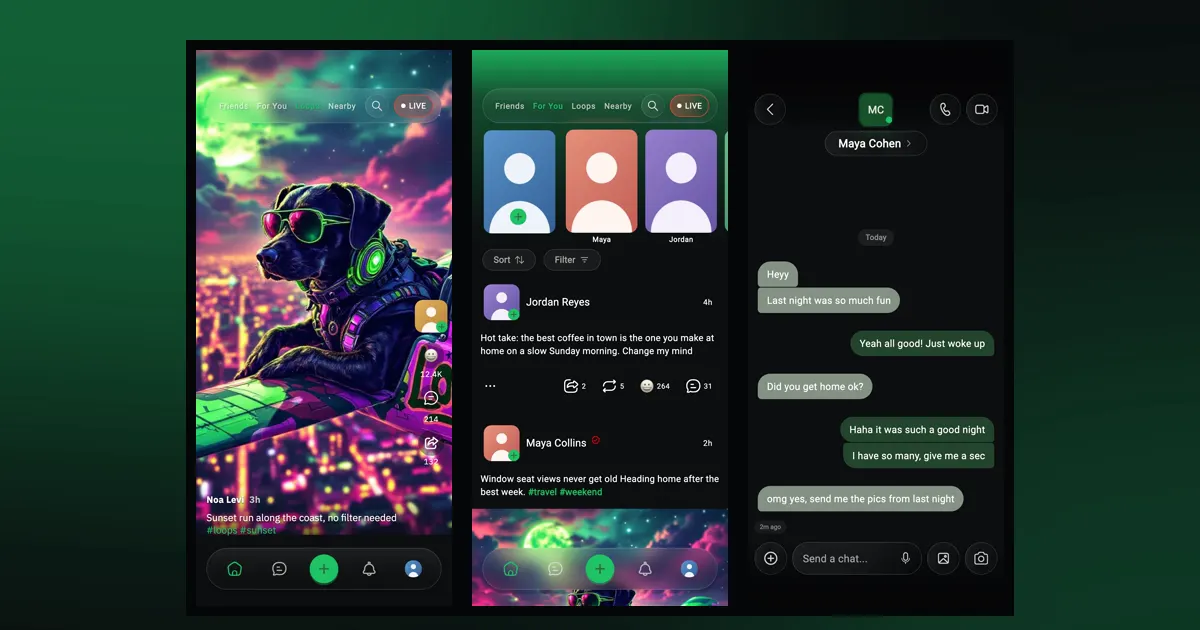
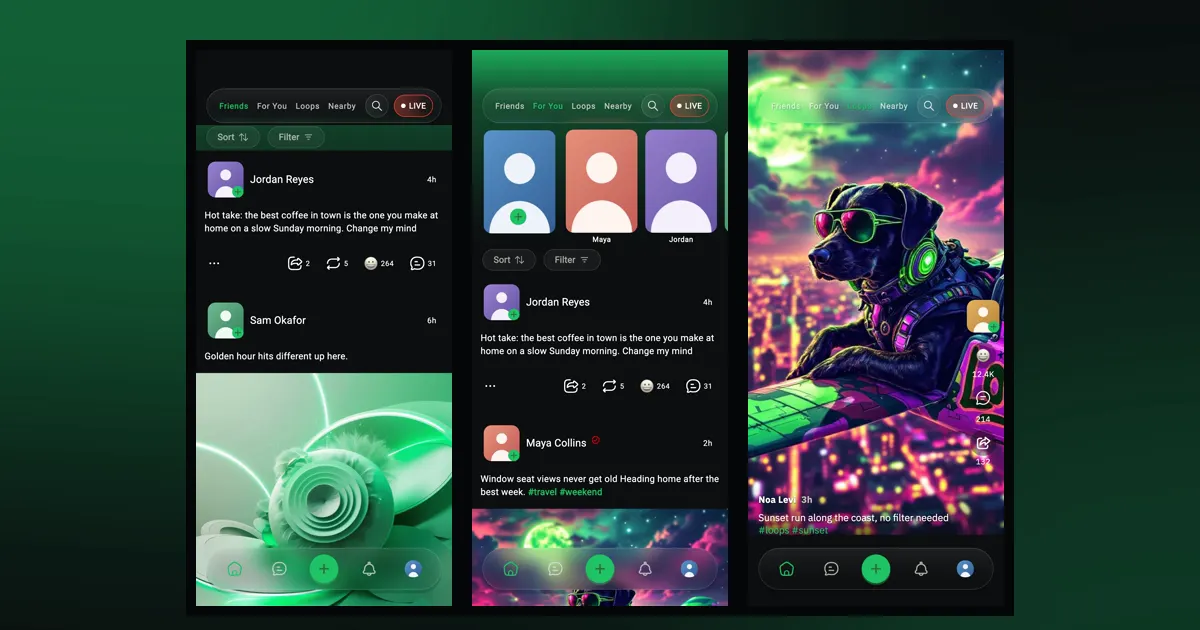
WeLoop has four feeds: Friends, For You, Loops and Nearby. Here's what each one shows, how to sort and filter them, and where stories and lives fit in.
 weloop
Get the app
How-to
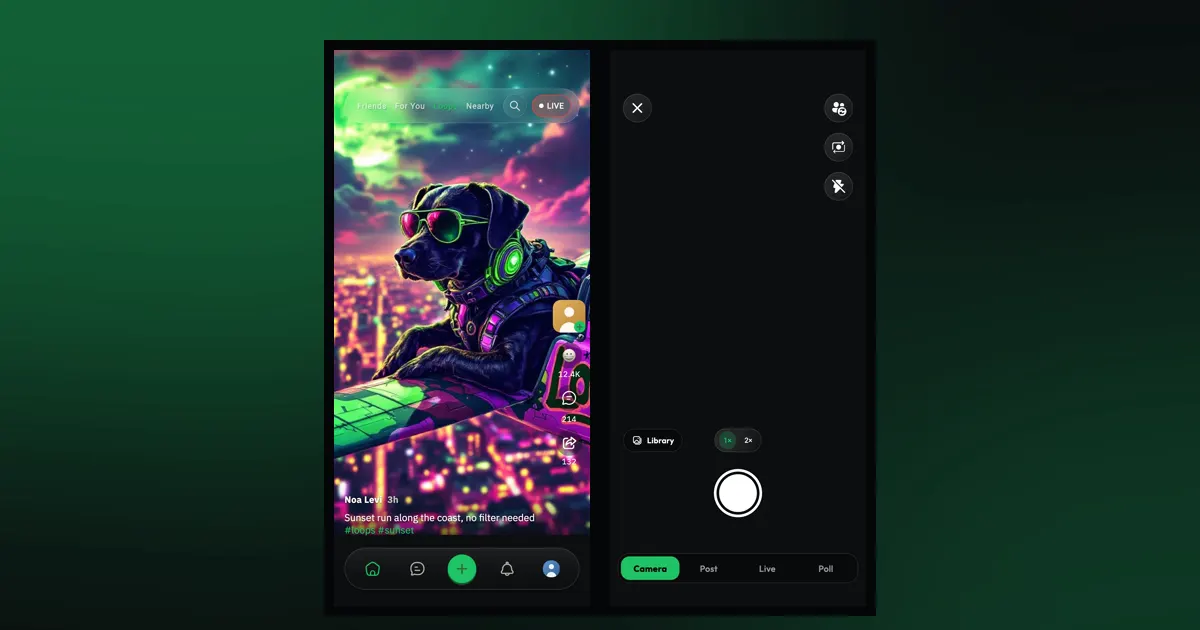
Loops are WeLoop's full-screen vertical videos. To make one, tap the + button, record (up to 2 minutes) or pick from your library, edit, and tap "Post Now"; to watch, open the Loops tab and swipe up.
This guide covers both sides: making a Loop from the camera to the post button, and getting the most out of watching them.
Tap the round + button in the middle of the bottom bar. The camera opens with four modes along the bottom:
For a Loop, stay on "Camera".
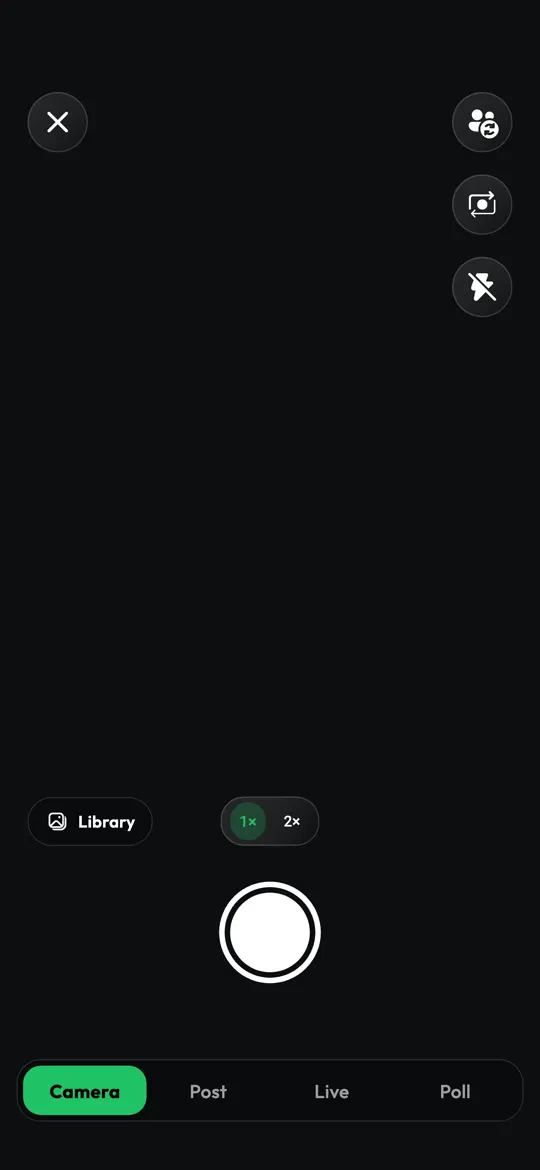
Yes. Open "Face Masks" in the camera and pick one from the catalog, or tap "All" to see everything. A mask can go on one face ("Editing one face") or on every face in the shot. The same masks work when you go live and on calls.
Yes. Tap "Library" in the camera and choose up to 4 photos or videos; the button shows your count as "Confirm (n/4)". Each video has to be shorter than 2 minutes. If it isn't, you'll see "Please choose a video that is shorter than 2 minutes".
After you record or pick something, the editor opens. The tools along the bottom depend on what you're editing.
| Photo | Video |
|---|---|
| Crop (Free, 1:1, 4:5, 3:4, 16:9, 9:16) | Trim |
| Filter | FX |
| Text | Text |
| Grid | Grid |
| Expert | Expert |
Filters for photos: Original, Sepia, Invert, Mono, Bright, Contrast, Vivid and Hue.
FX for videos: Blur, Vignette, Brightness, Contrast, Saturation, Color Pop, Pixelate, Noise, Glitch, Chromatic and Scanlines.
"Expert" opens a timeline editor for finer work:
Your drafts save automatically, so you won't lose an edit if you step away.
Type your caption, then use the AI helpers if you'd like a hand:
Add hashtags in the caption so people can find your Loop. Tapping a hashtag opens Search for that tag.
When you're done, choose where it goes:
Open the "Loops" tab at the top of Home. It's one of four feeds; the feeds guide explains the others.
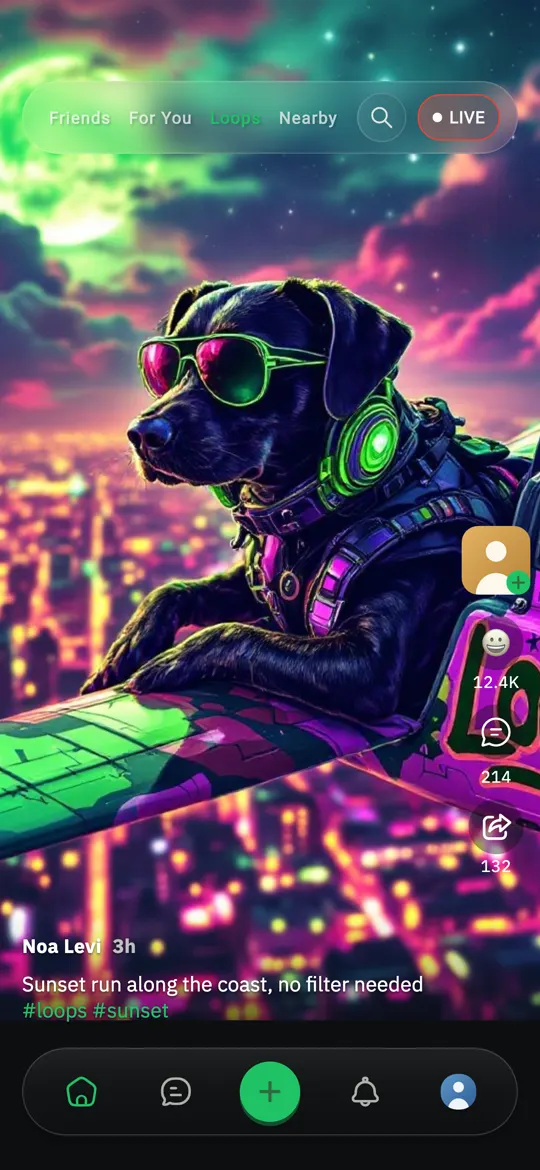
The reaction button offers 7 animated reactions: heart, stupid, cry, angry, shy, wow and lol. Comments support replies, reactions, and long-press actions like Reply, Copy and Edit. The share button sends a Loop into a chat, to your story, or out to other apps.
Yes. Loops you've watched are cached on your phone, so you can replay them without a connection. A Loop that isn't cached shows "No connection / Tap to retry".
You can sort by "Newest" or "Oldest" and filter by content type, and the Loops tab remembers its own settings. Your content preferences apply here too, so categories you've blocked stay out.
You can record up to 2 minutes in the camera, and videos you pick from your library must be shorter than 2 minutes.
Up to 4. The library picker counts them for you as "Confirm (n/4)".
Loops you've already watched are cached, so you can replay them offline. Ones that aren't cached show "No connection / Tap to retry".
Guide
WeLoop has four feeds: Friends, For You, Loops and Nearby. Here's what each one shows, how to sort and filter them, and where stories and lives fit in.
How-to
Post a WeLoop story to the public, your friends, your groups or Nearby, see who viewed it, and search posts, people and groups. Here's how.
Comparison
TikTok is built around one huge short-video feed. WeLoop puts short video next to friends, local posts, chat and groups, with feed controls by category.
Free on iPhone and Android. Set it up your way in a minute.